> For the complete documentation index, see [llms.txt](https://docs-v2.autoforwardtelegram.com/llms.txt). Markdown versions of documentation pages are available by appending `.md` to page URLs; this page is available as [Markdown](https://docs-v2.autoforwardtelegram.com/addons/forward-every-n-messages.md).
# Forward Every N Messages
> Automatically forward the 1st eligible message, then every Nth eligible message after that.
**Available on**: AutoForward Bot and AutoForward app (BOT, mobile and web)\
**Scope**: Task-scoped\
**Supported range**: **N = 1–1,000**
{% hint style="info" %}
### **Download Mobile App or use Web**
✅ **iOS** → [App Store](https://apps.apple.com/us/app/autoforward-for-telegram/id6447486093)\
✅ **Android** → [Google Play](https://play.google.com/store/apps/details?id=com.autoforward.telegramforward)\
✅ **Web** → [web.autoforwardtelegram.com](https://web.autoforwardtelegram.com/)
{% endhint %}
### What does this addon do?
Forward Every N Messages helps you sample content from a busy source without forwarding every message. After the task applies its normal filters and conditions, the addon counts the remaining eligible messages:
1. The first eligible message is forwarded.
2. The next **N − 1** eligible messages are skipped.
3. The following eligible message is forwarded.
4. The cycle repeats.
With **N = 5**, the forwarded sequence is **1, 6, 11, 16, 21…**.
This is a message-selection interval, not a time-based quota. It does not limit forwarding per hour or per day.
### Before you start
* Have an active forwarding task with a source chat configured.
* Unlock the addon for your AutoForward account.
* Decide how many eligible messages you want to skip between forwarded messages.
* Use **N = 1** when you want every eligible message to be forwarded.
### 1. Unlock the addon
#### In the AutoForward app
1. Open **Addons** from the main navigation.
2. Search for **Forward Every N Messages**.
3. Select **Unlock** and complete the credit purchase.
4. Confirm that the addon appears as **Active**.
#### In the AutoForward Bot
1. Open the addon catalog for your AutoForward account.
2. Select **Forward Every N Messages**.
3. Confirm the purchase or activation.
4. Return to the task where you want to use the addon.
Bot menu wording can vary slightly between bot releases. Look for the account's **Addons** or **Paid Addons** menu and the task's addon settings.
### 2. Open the addon settings for a task
#### In the AutoForward app
1. Open the forwarding task you want to configure.
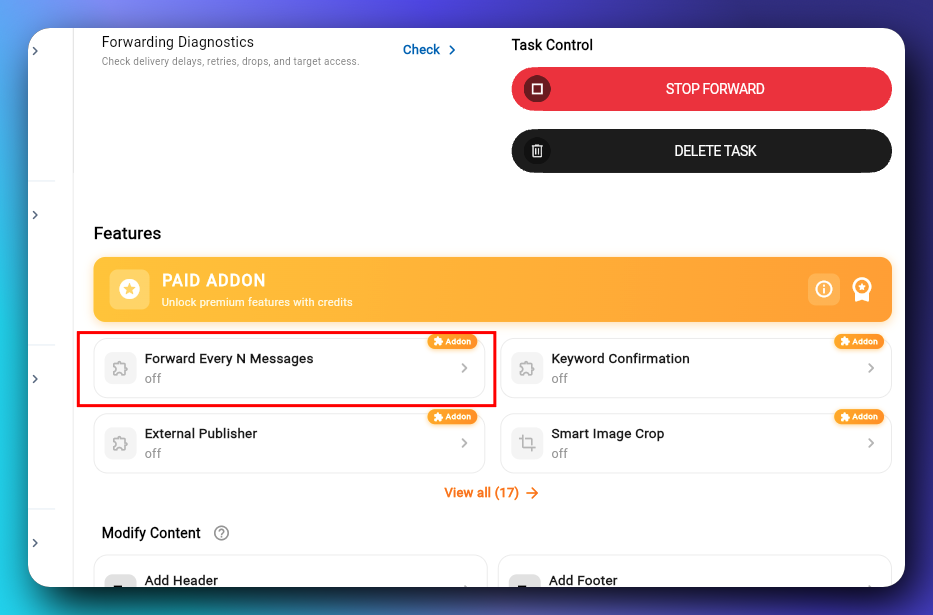
2. Scroll to the **Paid Addon** section.
3. Select **Forward Every N Messages** to open its settings.
#### In the AutoForward Bot
1. Open the task you want to configure.
2. Open its **Addons** or **Paid Addons** settings.
3. Select **Forward Every N Messages**.
If the addon is missing, refresh the task or addon list and verify that the addon is active for the same account.
### 3. Enable the addon and choose N
1. Turn on the addon's **Enable Feature** switch.
2. Enter a whole number from **1** to **1,000** for **N**.
3. Review the expected pattern before saving.
4. In the app, select **Save Settings**. In the bot, use its save or confirm action.
Example:
```
N: 5
Result: forward eligible messages 1, 6, 11, 16, 21…
```